
Why Your Laptop Fan Is So Loud (and How to Quiet It Down)
It starts as a gentle whirr. Then it becomes a constant drone. Eventually your laptop sounds like it’s preparing for takeoff every time you open Chrome, and you’re wondering whether it’s about to explode. (It isn’t. But the noise is telling you something.) A loud laptop fan is almost always a symptom, not the disease — here’s how to diagnose it.
Why Is My Laptop Fan So Loud All the Time?
Your laptop fan is loud because the processor is running hot, and the processor is running hot usually because of dust-clogged vents, a runaway program eating CPU, dried-out thermal paste (on older machines), or blocked airflow from soft surfaces. The fan is doing its job — cooling the machine. The fix is to reduce the heat, not silence the fan.
First: Find What’s Generating the Heat
Open Task Manager (Ctrl + Shift + Esc) → Processes tab → sort by CPU. If something is sitting at 60–100% CPU permanently, that’s your heat source. Common culprits:
- A stuck browser tab or extension. One rogue tab (often an auto-playing video or a crypto-miner on a dodgy site) can pin a CPU core. Chrome’s own Task Manager (Shift + Esc inside Chrome) identifies the exact tab.
- Windows Update or indexing running in the background. Temporary — give it an hour.
- Antivirus scans. Scheduled scans spike CPU briefly; constant high usage from your antivirus means something’s wrong with it.
- Malware. If CPU is high with no visible cause, run a full scan — see our guide to free antivirus for Windows.
End the offending task and listen. If the fan calms down within a minute, you’ve found it.
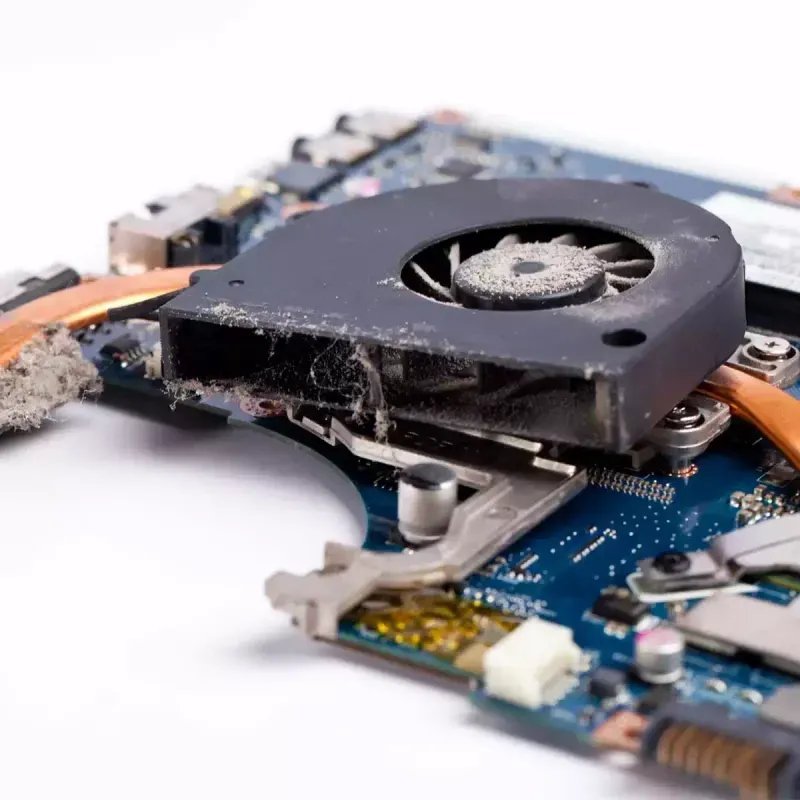
The Dust Problem (Bigger Than You Think)
Laptops inhale dust through their vents and never exhale it. After a year or two, the heatsink fins clog up like a lint trap, airflow collapses, and the fan has to scream to achieve the same cooling. The fix:
- Shut the laptop down completely.
- Blast the vents with short bursts of compressed air (£5–£8 a can), holding the can upright. Blow into the exhaust vent and out of the intake, or vice versa — you’re dislodging the dust mat.
- Hold the fan still with a toothpick if you can see it — letting it spin freely from the air blast can damage the bearings.
The amount of dust that comes out of a two-year-old laptop is genuinely horrifying. Do this every 6–12 months. For the keyboard area too, see our guide to cleaning a laptop keyboard safely — crumbs and dust get everywhere.
Check Your Surfaces and Settings
- Never use a laptop on a bed, duvet or sofa for extended periods. Soft surfaces block the intake vents underneath. A hard table, a lap desk, or even a chopping board works. This alone fixes “loud fan” for a remarkable number of people.
- Power plan: Control Panel → Power Options. If it’s on “Best performance”, try “Balanced” — the performance difference in everyday use is negligible, but the heat (and noise) difference is significant.
- Room temperature matters. A laptop in a 28°C room during a heatwave will always be louder. There’s no fix for physics.
- Close what you’re not using. Forty Chrome tabs, Spotify, Discord, Teams and a game launcher, all at once, on an old dual-core machine — the fan doesn’t stand a chance.
When It’s an Older Laptop
On machines 4+ years old, the thermal paste between the processor and heatsink dries out, and cooling efficiency plummets. Replacing it involves opening the laptop and is a job for someone confident (or a repair shop — usually £30–£50). The improvement can be dramatic: I’ve seen 15–20°C drops, turning a jet engine back into a whisper.
Also check the battery. A failing battery can generate heat and confuse the thermal management. If the laptop only screams when charging, or the battery drains unusually fast, the battery may be the issue — see why devices overheat when charging for the general principles.
When Loud Is Actually Broken
A fan that’s loud is working. A fan that rattles, clicks or grinds is dying — that’s a bearing failure, and it needs replacing (£15–£40 for the part, plus labour if you’re not DIY-inclined). And if the laptop is silent but burning hot, the fan may have failed entirely — shut it down and get it looked at, because that’s how components die.
The Bottom Line
Kill the CPU hog, clean the dust, get it off the duvet, and switch to Balanced power. That sequence fixes the vast majority of loud-fan complaints. If the machine is old and still slow after quieting down, our guide to speeding up a slow Windows laptop for free is the next step — a cool, clean, decluttered laptop often feels like a new machine.
Loud Laptop Fan: Questions, Answered
Is it safe to use a laptop that’s very hot?
Modern laptops protect themselves — they’ll throttle performance and, in extremes, shut down before damage occurs. So “very hot but working” is uncomfortable, not dangerous. The real risk is long-term: sustained heat degrades the battery faster and can shorten component life. Fix the cooling for the laptop’s longevity, not because it’ll explode today.
Should I buy a laptop cooling pad?
They help a little — typically 3–8°C reduction — by improving airflow underneath. A £15–£25 pad with fans is a reasonable purchase if you regularly use the laptop for heavy work on a desk. But it’s treating the symptom: clean the dust out and fix the CPU hog first, which achieve far more. A cooling pad on a dust-clogged laptop is like opening windows in a house with the heating on full.
Why is my fan loud even when I’m doing nothing?
“Doing nothing” and “the computer doing nothing” are different things. Check Task Manager sorted by CPU — there’s usually a culprit: Windows Update, antivirus scan, a stuck browser process, search indexing, or cloud sync uploading. If CPU is genuinely near idle and the fan still screams, it’s likely dust-clogged heatsinks or dried thermal paste — the cooling system working overtime to compensate for lost efficiency.
Can I control the fan speed manually?
Sometimes. Some manufacturers (Dell, Lenovo, ASUS) include fan control in their utilities; third-party tools like SpeedFan or Notebook FanControl work on some models. But manual control is a blunt tool — set it too low and the laptop overheats silently. Better approach: fix the heat source (dust, CPU hog, surface, power plan) and let the automatic fan curve do its job. Independent laptop cooling advice at Which? covers model-specific quirks worth knowing.
One thought on “Why Your Laptop Fan Is So Loud (and How to Quiet It Down)”