
How to Speed Up a Slow Windows Laptop Without Spending a Penny
Your laptop was fast once. Now it takes three minutes to boot, Chrome stutters, and you can practically hear it sighing when you open a second tab. Before you start browsing for a replacement, hear me out — I’ve revived laptops that seemed completely dead using nothing but the tools already built into Windows. It usually takes under an hour.
The truth is that most “slow” laptops aren’t broken. They’re just clogged.
How Do I Speed Up a Slow Windows Laptop Without Buying Anything?
The biggest wins are: stop unnecessary programs launching at startup, uninstall bloatware, run Windows’ built-in disk cleanup, and check whether your storage is nearly full. Those four steps alone fix the majority of slow laptops I’ve ever seen. Everything below is free and uses tools you already have.
Step 1: Tame Your Startup Programs
This is the single highest-impact fix. Every program that launches at boot steals a slice of your processor and RAM before you’ve even opened anything. Press Ctrl + Shift + Esc to open Task Manager, click the Startup apps tab, and look at the “Startup impact” column. Disable anything marked High that you don’t need the second you log in — Spotify, Discord, Adobe updaters, printer utilities, all of it. You can still open these programs manually; you’re just stopping them ambushing your boot.
Be a little careful: leave your antivirus and anything from your laptop manufacturer related to power or drivers alone. Everything else is fair game.
Step 2: Uninstall the Junk
Go to Settings → Apps → Installed apps and sort by size. You’ll find trial antivirus software, manufacturer bloatware, games you’ll never play, and programs you installed for one job three years ago. Uninstall ruthlessly. A special mention for the pre-installed McAfee or Norton trials — Windows’ built-in Defender is genuinely good enough now, and those trials slow everything down. Our rundown of the best free antivirus for Windows covers this in more detail.
Step 3: Free Up Storage
A drive that’s 90%+ full slows Windows to a crawl. Aim to keep at least 15–20% free. The quick wins:
- Run Disk Cleanup (search for it in the Start menu) — it clears Windows Update leftovers, temp files and old system files, often freeing several gigabytes.
- Turn on Storage Sense (Settings → System → Storage) so Windows tidies up after itself automatically.
- Empty the Downloads folder. Everyone’s Downloads folder is a graveyard of installers from 2022.
- Move photos and videos to the cloud or an external drive. If your phone’s eating space too, see how to free up storage on an Android phone.
Step 4: Check What’s Actually Hogging Resources
Back in Task Manager, look at the Processes tab sorted by CPU or Memory. If one program is permanently eating 80% of your processor, that’s your problem — it might be a stuck update, a misbehaving browser tab, or malware. Chrome with 40 tabs open is the classic culprit; consider a tab suspender extension or just… close some tabs. I say this as someone with 40 tabs open.
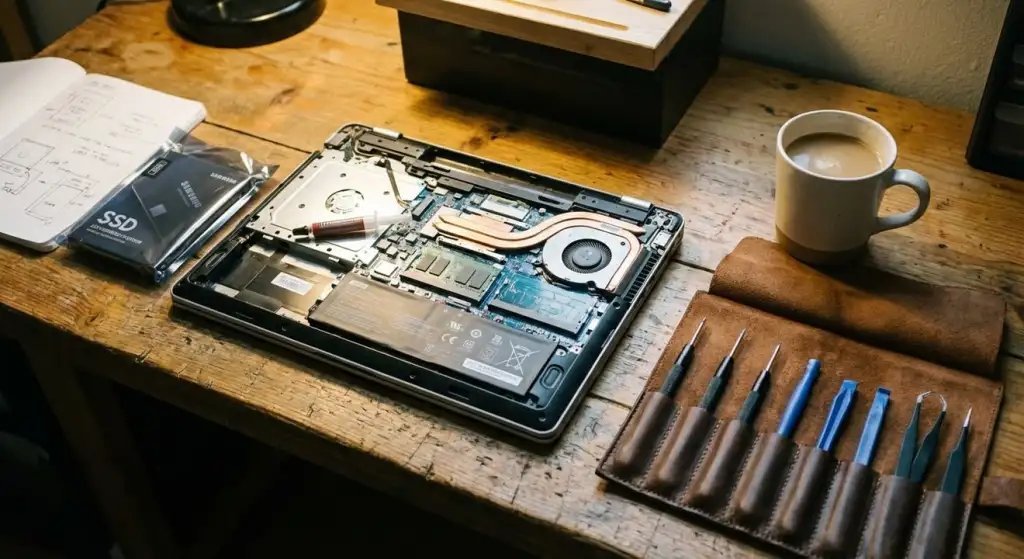
Also check the Performance tab. If your disk is pinned at 100% constantly on an old mechanical hard drive, that’s the bottleneck — and honestly, that’s the one thing where spending money (an SSD upgrade, usually £30–£50) makes a transformative difference. But that’s a hardware fix for another day; everything here is free.
Step 5: The Deeper Cuts
If the basics didn’t do it, try these:
- Adjust visual effects: Search “Adjust the appearance and performance of Windows” and choose “Adjust for best performance”. It makes Windows look a bit 2009, but on old machines the difference is real.
- Run a malware scan with Windows Defender — slowdowns plus pop-ups or weird browser behaviour often mean something unwanted is installed.
- Update everything: Windows Update, then your graphics and chipset drivers from the manufacturer’s site. Boring, but outdated drivers cause mysterious slowness.
- Check your power plan: On the “Power saver” plan? Switch to Balanced. It’s in Control Panel → Power Options.
- Reset Windows as a last resort: Settings → System → Recovery → Reset this PC. The “Keep my files” option reinstalls Windows fresh while preserving your documents. It’s the nuclear option, but it works — I’ve seen five-year-old laptops feel new again.
What About Those “PC Cleaner” Programs?
Don’t. The registry cleaners and “speed boosters” advertised online range from useless to actively harmful, and several bundle adware. Everything you need is built into Windows. If a program promises to make your PC 300% faster for £29.99, close the tab.
When It’s Genuinely Time to Replace It
Be honest with yourself: if the laptop is 7+ years old, has 4GB of RAM, and still struggles after all of the above, no amount of tuning will save it. At that point the money is better spent on a replacement — and if you’re a student, our guide to the best budget laptops for students in the UK proves you don’t need to spend a fortune to get something decent.
But try the free fixes first. In my experience, eight laptops out of ten just need a good clear-out — and Microsoft’s own tips to improve PC performance cover the official version of the same advice.
Speeding Up Windows: Questions, Answered
Will adding more RAM speed up my laptop?
If you’re running 4GB, absolutely — it’s the single most transformative upgrade for an old laptop, and a 4GB-to-8GB stick costs £20–£30. If you already have 8GB and the laptop is still slow, RAM probably isn’t the bottleneck — look at startup programs, storage space and background processes first. Check Task Manager’s Performance tab: if memory is constantly above 85%, you need more RAM; if it’s the disk pinned at 100%, you need an SSD.
Should I just reinstall Windows?
As a last resort, yes — a fresh install clears years of accumulated cruft in one go, and Windows’ built-in “Reset this PC” with the “keep my files” option makes it far less painful than it used to be. Back up first anyway (resets occasionally go wrong), reinstall your essential programs afterwards, and enjoy the new-machine feeling. I’d try the cleanup steps in this guide first; reset if they’re not enough.
How often should I restart my laptop?
More often than you do. Many people “shut down” laptops that actually just sleep (thanks, Fast Startup), meaning Windows can go weeks without a true restart — accumulating memory leaks and stuck processes. A proper restart once a week clears all of that. If your laptop has been “on” for 20+ days, restart it before you complain about speed.
Is it worth upgrading an old laptop to an SSD?
It’s the best £30–£50 you’ll ever spend on old hardware. Swapping a mechanical hard drive for an SSD makes a 5-year-old laptop boot in 20 seconds instead of 3 minutes and transforms everyday responsiveness. It’s a 15-minute job with a YouTube tutorial for your model. If your laptop is otherwise fine but painfully slow, do this before buying a new one.