
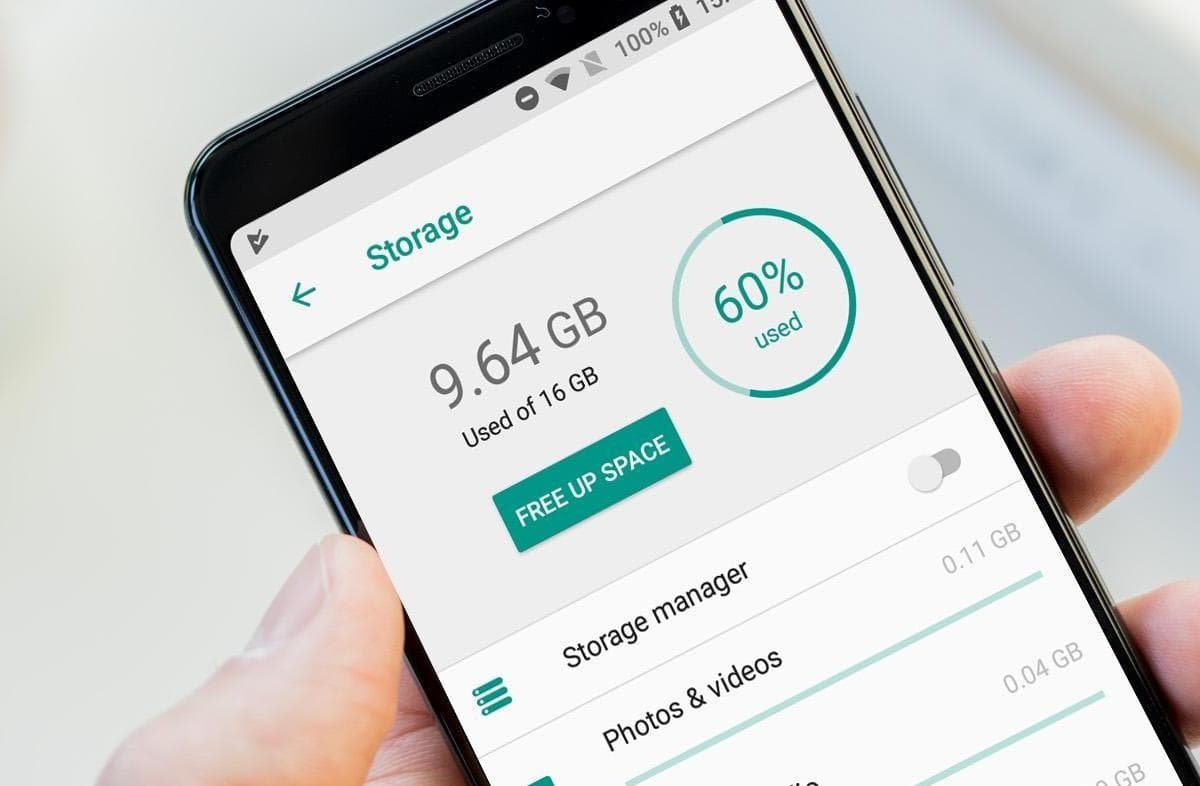
How to Free Up Storage on an Android Phone
“Storage space running out.” Four words that appear at the worst possible moment — usually when you’re trying to take a photo or install an update. Android phones are notorious for filling up silently, but the good news is that most of the wasted space is junk you won’t miss. Here’s how to claw it back.
How Do I Free Up Storage on an Android Phone?
The fastest wins are: clear cached data from heavy apps, delete downloaded files and old downloads, remove unused apps, back up photos to the cloud and delete local copies, and empty WhatsApp’s media folders. Most people recover 5–15GB in about fifteen minutes without losing anything they care about.
First: See What’s Actually Eating the Space
Go to Settings → Storage. Android breaks it down by category — apps, photos, videos, audio, system. Tap into each one. The culprit is usually obvious: one category dwarfing the rest. On Samsung phones it’s Settings → Battery and device care → Storage. Knowing what is full tells you where to clean — don’t just start deleting things at random.
The Big Wins
1. WhatsApp media (often the biggest surprise)
WhatsApp silently downloads every photo, video and voice note anyone sends you — including the 47 memes from the family group chat. Open WhatsApp → Settings → Storage and data → Manage storage. You’ll see exactly how much space each chat uses. Delete the big videos and forwarded junk. Then go to Settings → Chats and turn off media visibility / auto-download so it stops refilling. I’ve seen this single step free 8GB+ on people’s phones.
2. Photos and videos — back up, then delete local copies
Your camera roll is probably the biggest storage hog. Back everything up to the cloud first (see our guide to free cloud photo backup), then use Google Photos’ “Free up space” feature — it deletes local copies of everything already backed up, in one tap. This alone can free 10–20GB.
3. Clear app caches
Apps like Chrome, Instagram, TikTok and Spotify hoard cached data. Go to Settings → Apps → pick the app → Storage → Clear cache. (Cache, not data — clearing data logs you out and deletes settings.) TikTok and Instagram caches can each swell past 1GB without you noticing.
4. Spotify and Netflix downloads
Downloaded playlists, podcasts and films are wonderful until they eat 6GB you forgot about. In Spotify: Settings → Storage → clear cache or remove old downloads. In Netflix: Downloads → delete watched films. If you’re not going offline any time soon, streaming uses no storage at all.
5. The Downloads folder
Open your Files app → Downloads. It’s a museum of PDFs, APKs, attachments and memes from 2021. Select all, delete, feel the relief.
6. Unused apps
Settings → Apps, sort by last used if your phone offers it. That gym app from January, the airline app from one trip, three photo editors — delete them. You can always reinstall; your data is usually tied to your account anyway.
The Deeper Cuts
- Old voice recordings and call recordings — check your recorder app.
- Duplicate photos — burst shots and near-identical selfies. Google Photos has a “review” feature that finds blurry and duplicate shots.
- Offline maps — Google Maps lets you download whole cities; delete the ones for places you’ve already visited.
- Move to SD card — if your phone has a microSD slot, move photos, music and some apps across (Settings → Apps → app → Storage → Change).
Stop It Filling Up Again
A few settings changes keep the problem away:
- Turn on auto-delete for old WhatsApp media and set auto-download to Wi-Fi only
- Enable Google Photos backup with “Free up space” run monthly
- Set Spotify to stream rather than download by default
- Turn on Storage Manager (Settings → Storage) to auto-remove backed-up photos after 30/60/90 days
When the Phone Itself Is the Problem
I’ll be straight: if your phone has 32GB of total storage, you’re fighting physics. Modern Android needs 12–15GB just for the system, leaving you almost nothing. No amount of cleaning fixes a phone that’s fundamentally too small for 2026. If you’re constantly at 95%+ full despite regular clear-outs, it’s upgrade time — and our guide to budget tech buying principles apply to phones too: don’t buy the 64GB model to save £30, you’ll regret it within a year. Google’s own free up space on Android help page covers the official steps as well.
Android Storage Questions, Answered
Why is “System” taking up so much storage?
Android itself plus pre-installed apps typically needs 12–20GB, and there’s nothing you can do about most of it — it’s the operating system. What you can trim: pre-installed apps you can uninstall or at least disable (Settings → Apps → select → Uninstall/Disable), which recovers their updates and data. On Samsung phones, there’s often several GB of Samsung apps duplicating Google ones — disable the ones you never open.
Can I move apps to the SD card?
Partly, on phones that support it. Settings → Apps → select an app → Storage → Change → SD card moves a portion of the app — but usually not all of it, and widgets plus some apps refuse to move. Adoptable storage (formatting the SD card as internal) merges the spaces fully but makes the card unreadable elsewhere and slows the phone if the card is slow. Honestly, SD cards are better for photos, music and downloads than for apps.
What’s the difference between clearing cache and clearing data?
Clearing cache deletes temporary files — safe, instant space, the app rebuilds what it needs. Clearing data resets the app to freshly-installed state — you’re logged out, settings gone, downloads deleted. Cache: do freely. Data: only when an app is badly misbehaving and you’ve tried everything else.
How much free space should I keep?
Aim for at least 10–15% of total storage free — below that, Android can’t update apps, the camera may refuse to save photos, and the whole phone slows down as the system struggles to shuffle files. If you’re perpetually under 2GB free on a 64GB phone, no cleaning routine will save you long-term; it’s a sign the phone’s storage is simply too small for how you use it.