
How to Set Up Two Factor Authentication Properly
If you do one thing for your online security this year, make it this. Two-factor authentication (2FA) is the single most effective protection against hacked accounts — Microsoft’s research suggests it blocks over 99% of automated attacks. Passwords leak constantly; 2FA means the leaked password alone isn’t enough. Yet most people either haven’t enabled it or have set it up badly. Let’s fix that.
How Do I Set Up Two Factor Authentication Properly?
For each important account (email, banking, social media, cloud storage): go to the account’s security settings, enable two-factor authentication, and choose an authenticator app (like Google Authenticator, Microsoft Authenticator or Authy) over SMS codes. Save the backup/recovery codes somewhere safe — printed on paper, in a drawer. Do your email first, because every other account’s password resets go through it.
Why Your Email Comes First
Your email is the master key to your digital life. Forgot your password anywhere? The reset link goes to your email. Someone with access to your email can reset everything — bank, shopping, social media, the lot. Secure your email with 2FA before anything else, then work outward: banking, cloud storage (iCloud/Google), social media, shopping sites.
Authenticator App vs SMS: Why It Matters
You’ll usually be offered a choice of second factor:
- Authenticator app (best). Generates time-based codes on your phone. Works without mobile signal, can’t be intercepted remotely, and isn’t vulnerable to SIM-swap attacks. Google Authenticator, Microsoft Authenticator, Authy and 1Password all do this. This is what “properly” means.
- SMS codes (okay, better than nothing). Convenient, but vulnerable to SIM-swapping — where a scammer convinces your network to move your number to their SIM and intercepts your codes. It’s rarer than the security industry implies, but it happens. Use SMS only where no app option exists.
- Hardware keys (best of all). A YubiKey (£25–£55) you tap to log in. Phishing-proof — it only works on the real site. Overkill for most people, but the gold standard if you’re a journalist, activist, or just keen.
- Email codes (weakest). If your email is the account being protected, email-based 2FA is circular. Avoid where possible.
The Setup Walkthrough
- Install an authenticator app on your phone. Authy is my recommendation for most people because it backs up encrypted to the cloud — lose your phone and you can recover. Google Authenticator now offers cloud backup too.
- Start with your email. Gmail: Google Account → Security → 2-Step Verification. Outlook: Microsoft account → Security → Advanced security options. iCloud: Apple ID → Sign-In & Security → Two-Factor Authentication (it’s on by default for modern Apple IDs — verify it).
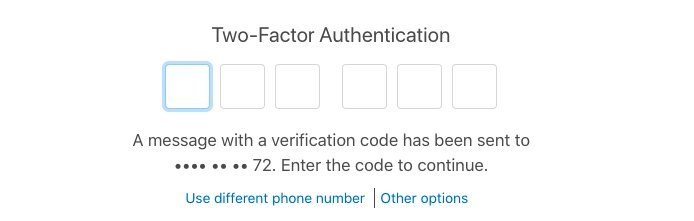
- Scan the QR code with the authenticator app when prompted, enter the 6-digit code to confirm.
- Save the backup codes. Every service gives you one-time recovery codes. Print them or write them down and put them somewhere safe — not in a note on the same phone. These are your lifeline if you lose the phone.
- Repeat for banking, social media, and everything else important. Prioritise: email → bank → cloud storage → social media → shopping → everything else.
The Mistakes Everyone Makes
- Not saving backup codes. Then the phone dies and you’re locked out of everything simultaneously. This is the number one 2FA disaster. Save the codes.
- Using SMS for everything when the app option was right there. Take the extra two minutes.
- Enabling it on one device only with no recovery path. Authy’s multi-device backup exists for exactly this reason.
- Forgetting old accounts. That ancient Yahoo address you still use for password resets? Secure it or migrate away from it.
- Ignoring the “remember this device” option at work. On your own trusted computer, ticking “don’t ask again” is fine and saves daily friction. On shared or public computers, never tick it.
What About Passkeys?
The industry is moving toward passkeys — cryptographic logins stored on your device, unlocked with fingerprint or face. They’re phishing-proof and easier than 2FA. Google, Apple and Microsoft all support them now, and where a site offers “sign in with passkey”, take it — it’s the future, and it’s genuinely better. But passkeys don’t cover everything yet, so 2FA remains essential in the meantime.
The Bottom Line
Authenticator app, email first, backup codes on paper, then work through your accounts. An hour’s work that protects you more than any antivirus or VPN ever will — and if you’re weighing those, our guides to free antivirus and whether you need a VPN will help you prioritise. The National Cyber Security Centre’s MFA guidance is the official version of this advice — short and worth reading.
Two-Factor Authentication: Questions, Answered
What happens if I lose my phone with the authenticator app?
This is why backup codes exist — those one-time codes you saved (you did save them, right?) get you back in. With Authy or Google Authenticator’s cloud backup, install the app on your new phone, verify your identity, and your codes restore. Without backups, you’ll go through each service’s account recovery process — painful but possible. The lesson, again: save the backup codes before you need them, somewhere that isn’t the phone.
Is SMS two-factor better than nothing?
Yes — meaningfully. SIM-swap attacks are real but rare and targeted; the attacks SMS 2FA stops (password leaks, credential stuffing, phishing) are constant and automated. “SMS 2FA is imperfect” is true; “therefore skip 2FA” is dangerously wrong. Use an authenticator app where offered, SMS where it’s the only option, and never nothing.
Do I need 2FA on every account?
Prioritise: email first (the master key), then banking, cloud storage, social media, and anything with payment details. That forum account from 2015? Less critical — but if you reuse passwords (stop doing that; get a password manager), its breach can cascade. Realistic goal: 2FA on everything important, unique passwords everywhere via a manager, and you’ll be better protected than 95% of people.
Are passkeys replacing 2FA?
Gradually. Passkeys (cryptographic login via fingerprint/face) are phishing-proof and simpler — Google, Apple and Microsoft all support them now. Where a site offers passkey sign-in, use it. But adoption will take years, and 2FA remains essential for everything else in the meantime. Think of passkeys as the future arriving unevenly, not as a reason to skip 2FA today.
5 thoughts on “How to Set Up Two Factor Authentication Properly”