
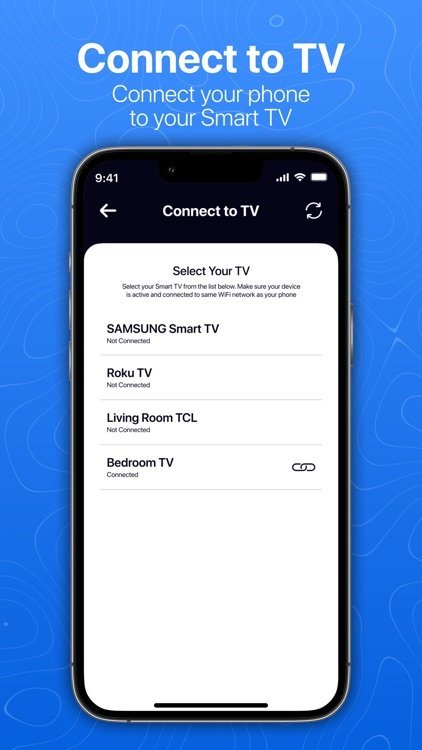
How to Connect Your Phone to a Smart TV Wirelessly
You’ve got a video on your phone — a holiday clip, a presentation, the match highlights — and a big telly across the room. Getting one to show on the other wirelessly should be simple, and honestly, it mostly is now. But there are half a dozen different technologies with confusing names, and picking the wrong one leads to twenty minutes of swearing at a “device not found” message.
Here’s the straightforward version for every common setup.
How Do I Connect My Phone to a Smart TV Wirelessly?
The easiest method depends on your devices: iPhone to most smart TVs uses AirPlay; Android to most smart TVs uses Chromecast built-in or Miracast; and Samsung phones pair best with Samsung TVs via Smart View. In all cases, both devices need to be on the same Wi-Fi network — that’s the step people miss most often.
iPhone to Smart TV (AirPlay)
Most smart TVs sold in the last five years — Samsung, LG, Sony, TCL, Hisense — have AirPlay 2 built in. To use it:
- Make sure your iPhone and TV are on the same Wi-Fi network.
- On iPhone, swipe down from the top-right corner to open Control Centre.
- Tap Screen Mirroring and select your TV. For just video/audio from an app, tap the AirPlay icon inside the app instead — this gives better quality than full screen mirroring.
- Enter the code shown on the TV if asked.
AirPlay from within an app (YouTube, Netflix, Photos) is the better option: the TV streams directly rather than mirroring your screen, so the quality is higher and your phone stays usable. Full screen mirroring is best for things like showing a presentation or a website.
If your TV is older and lacks AirPlay, a Chromecast or Amazon Fire TV Stick (£30–£35) plugged into the HDMI port adds casting to any telly.
Android to Smart TV (Chromecast / Miracast)
Most Android phones and most smart TVs speak Chromecast. Open the app you want to cast from (YouTube, Netflix, Spotify, BBC iPlayer), tap the cast icon (a rectangle with Wi-Fi waves), and pick your TV. The TV then streams directly from the internet — your phone just acts as the remote.
For full screen mirroring on Android: swipe down the notification shade, tap Screen Cast / Smart View / Wireless Display (the name varies by manufacturer), and select the TV. Samsung phones call it Smart View and it works beautifully with Samsung TVs.
One gotcha: some Huawei and older phones use Miracast instead, which needs the TV to support it (most do — look for “Screen Mirroring” or “Miracast” in the TV’s input menu).
What If It Won’t Connect?
Nine times out of ten, it’s one of these:
- Different Wi-Fi networks. Your phone’s on the 5GHz band and the TV’s on 2.4GHz, or one of them is on a guest network. Put both on the same one. (Some routers isolate the bands from each other — check the router settings if this keeps happening.)
- VPN on the phone. A VPN makes your phone invisible to local devices. Turn it off while casting.
- TV software out of date. Check for a firmware update on the TV — casting support improves with updates.
- Router AP isolation. Some routers (especially in shared houses or flats with communal Wi-Fi) block devices from seeing each other. It’s a router setting, usually under “wireless” or “advanced”.
- Just restart both. I know. But it works embarrassingly often.
Casting vs Mirroring: Which Should You Use?
Casting (the cast icon inside an app) sends the video stream directly to the TV. Better quality, doesn’t drain your phone battery, and you can use your phone for other things while it plays. Mirroring duplicates your entire screen — useful for presentations, photos, or apps without cast support, but lower quality and it locks up your phone.
Rule of thumb: if the app has a cast button, use it. Only mirror when there’s no other option.
The Bottom Line
Same Wi-Fi network, right button for the job, and it just works — most of the time. If your TV is too old for any of this, a £30 streaming stick is the cheapest upgrade in home tech. And if you want the same trick from a computer instead of a phone, see our guide to mirroring a laptop screen to a TV. If the TV itself is the problem — slow apps, endless loading — that’s a different issue, covered in why smart TVs get so slow at loading apps.
Connecting Phone to TV: Questions, Answered
Why won’t my phone find my TV?
The overwhelmingly common cause is the two devices being on different networks — phone on mobile data instead of Wi-Fi, or one on the guest network. Second most common: a VPN running on the phone, which hides it from local devices. Third: the TV’s casting feature is disabled or needs a firmware update. Work through those three and you’ll fix it 95% of the time.
Can I cast without Wi-Fi?
Sort of. Chromecasts can work via a phone hotspot, and some TVs support Wi-Fi Direct (device-to-device without a router). But it’s fiddly and unreliable — casting is designed around a shared Wi-Fi network. For a permanent setup, sort the Wi-Fi; for a one-off at a friend’s house, an HDMI adapter for your phone (£15–£25, USB-C or Lightning to HDMI) is the reliable fallback.
Does casting use my mobile data?
Not if both devices are on Wi-Fi — the TV streams directly from the internet over your broadband, and your phone just sends commands. Your phone’s data isn’t involved at all. The exception: if the phone itself is hotspotting the TV, then yes, everything counts against your mobile data — check our guide on hotspot data usage before doing that for a film night.
Is there a delay when mirroring?
Yes — typically 100–300ms over wireless, which shows as lip-sync lag in video and makes gaming unplayable. Casting (from within an app) has no such issue because the TV streams directly. For video, always prefer the in-app cast button over full screen mirroring. Independent TV and streaming guides at Which? test casting performance across the major TV brands if you’re comparing sets.