
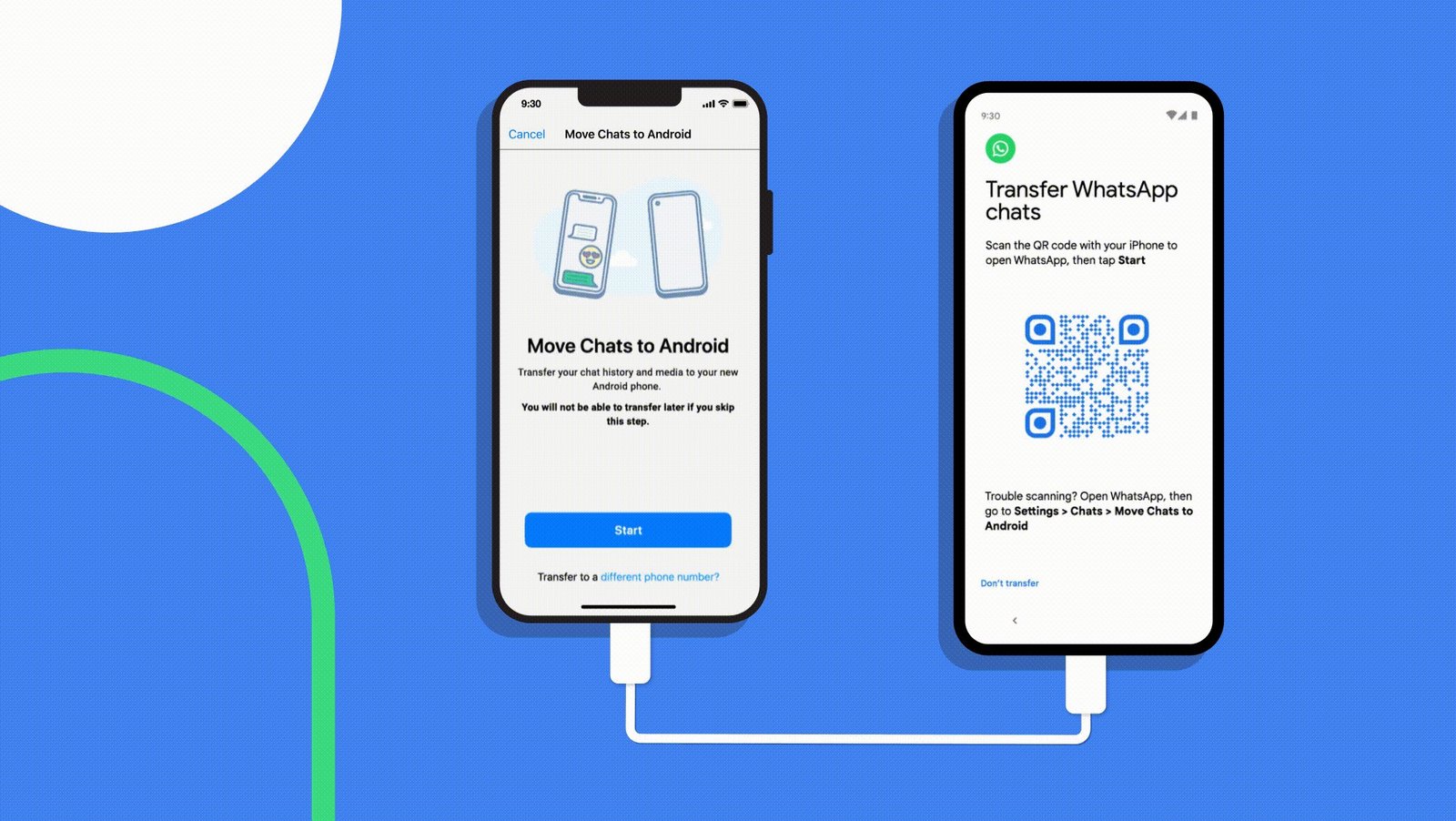
How to Transfer WhatsApp Chats to a New Phone
New phone day is exciting right up until you open WhatsApp and realise years of chats — the family group, the planning threads, those voice notes from your mum — are sitting on the old handset. Moving WhatsApp to a new phone used to be a faff involving cables and crossed fingers. These days it’s mostly painless, as long as you do it in the right order.
How Do I Transfer WhatsApp Chats to a New Phone?
Back up your chats to the cloud on the old phone first (Google Drive on Android, iCloud on iPhone), then install WhatsApp on the new phone, verify the same number, and restore when prompted. The golden rule: don’t wipe the old phone until you’ve confirmed the chats are on the new one.
Android to Android
The easiest path:
- On the old phone: WhatsApp → Settings → Chats → Chat backup → Back Up. Make sure it completes on Wi-Fi. Check the backup includes videos if you want them (they balloon the backup size — most people skip videos).
- On the new phone: install WhatsApp, verify your number (same number, same Google account).
- When prompted, tap Restore. Wait for it to finish before using the app.
Newer Android phones also offer direct transfer: during setup, WhatsApp can move chats phone-to-phone via a QR code, no cloud needed. It’s faster and doesn’t count against your Google storage. If you’re offered it, take it.
iPhone to iPhone
- On the old iPhone: WhatsApp → Settings → Chats → Chat Backup → Back Up Now. This goes to iCloud — make sure you have enough iCloud space (WhatsApp backups can be several GB; the free 5GB often isn’t enough).
- On the new iPhone: install WhatsApp, verify the same number and Apple ID.
- Tap Restore Chat History when prompted.
If iCloud space is tight, do a full encrypted backup of the old iPhone to a computer instead — WhatsApp data comes along with it, and restoring that backup to the new phone brings everything across.
Android to iPhone (and Vice Versa)
This used to be impossible without dodgy third-party software. Now it’s officially supported:
- Android → iPhone: Use Apple’s Move to iOS app on the Android phone during iPhone setup. Select WhatsApp when choosing what to transfer. Both phones need to be on Wi-Fi and plugged into power — it can take a while for big chat histories.
- iPhone → Android: On Samsung phones, Smart Switch handles it via cable. On Pixels, the setup wizard offers WhatsApp transfer with a cable connection. WhatsApp’s own support pages have the current steps, as the exact flow changes with updates.
Cross-platform transfers move messages but historically haven’t moved everything perfectly — call history and some media occasionally go missing. Check the important chats after the move.
Changing Your Number Too?
If you’re getting a new number as well as a new phone, do it in this order: on the old phone, go to WhatsApp → Settings → Account → Change Number first (this migrates your account), then move to the new phone. Doing it backwards strands your chats on the old number.
Common Pitfalls
- Different cloud accounts. The backup and restore must use the same Google account (Android) or Apple ID (iPhone). This catches people with work/personal accounts.
- Restoring an old backup over new chats. If you’ve been using WhatsApp on the new phone for a week before restoring, the restore overwrites those new messages. Restore immediately on setup.
- Wiping the old phone too soon. Keep the old phone until you’ve opened WhatsApp on the new one and confirmed the chats are there. This is also why our checklist for selling your old phone puts backup first and wiping last.
- Not enough cloud storage. Check before you start. A backup that fails silently at 90% is worse than no backup.
The Bottom Line
Cloud backup on the old phone, same number and same cloud account on the new phone, restore on first launch, verify before wiping. Twenty minutes, most of it waiting. And once you’re settled, make sure your photos are safe too — our guide to free cloud photo backup takes ten minutes and saves years of memories. WhatsApp’s own help centre has the latest transfer steps if anything here has changed with a recent update.
WhatsApp Transfer: Questions, Answered
Can I transfer WhatsApp without Google Drive or iCloud?
On Android, yes — the newer phone-to-phone transfer via QR code moves chats directly without touching the cloud, and it’s faster. On iPhone, you can do an encrypted computer backup of the whole phone and restore it to the new one, which carries WhatsApp along. But the cloud backup method remains the most reliable cross-check: even if you use direct transfer, run a cloud backup first as insurance.
Will I lose my WhatsApp groups when I switch phones?
No — groups are tied to your account and phone number, not the device. Restore your chats on the new phone and all your groups reappear with full history (assuming the backup completed). You’ll stay admin of any groups you admin. The only thing that doesn’t transfer: your ” starred messages” sync fine, but chat wallpaper and notification customisations need redoing.
What if my backup is too big for my cloud storage?
Exclude videos from the WhatsApp backup — they’re usually 70–80% of the size and rarely worth keeping every one of. In WhatsApp → Settings → Chats → Chat Backup, toggle off “Include videos”. Your messages, photos and voice notes still transfer. If it’s still too big, clear out large forwarded videos from big group chats before backing up.
Can I merge chats from two different numbers?
No — WhatsApp ties everything to one phone number, and there’s no merge function. If you’ve been running two numbers (personal and work), pick one as the survivor. You can export individual chats as email/text files from the old number before abandoning it, so the history isn’t entirely lost — but they won’t merge into the new account’s chat list.