
How to Back Up Your Photos to the Cloud for Free
Here’s a thought that should terrify you slightly: if your phone died right now — dropped in a puddle, run over, nicked on the night bus — how many of your photos would survive? For a lot of people, the answer is “whatever’s on Instagram”. Everything else lives on one fragile rectangle of glass.
Backing up your photos to the cloud for free takes about ten minutes to set up, and then it just happens. Here’s how, whatever phone you’ve got.
How Do I Back Up My Photos to the Cloud for Free?
The easiest free options are Google Photos (15GB free), iCloud (5GB free), Amazon Photos (unlimited photo storage for Prime members), and OneDrive (5GB free). For most people, Google Photos is the best free choice regardless of phone — 15GB covers tens of thousands of photos, and it works on iPhone and Android alike.
Option 1: Google Photos (Best Free Pick for Most People)
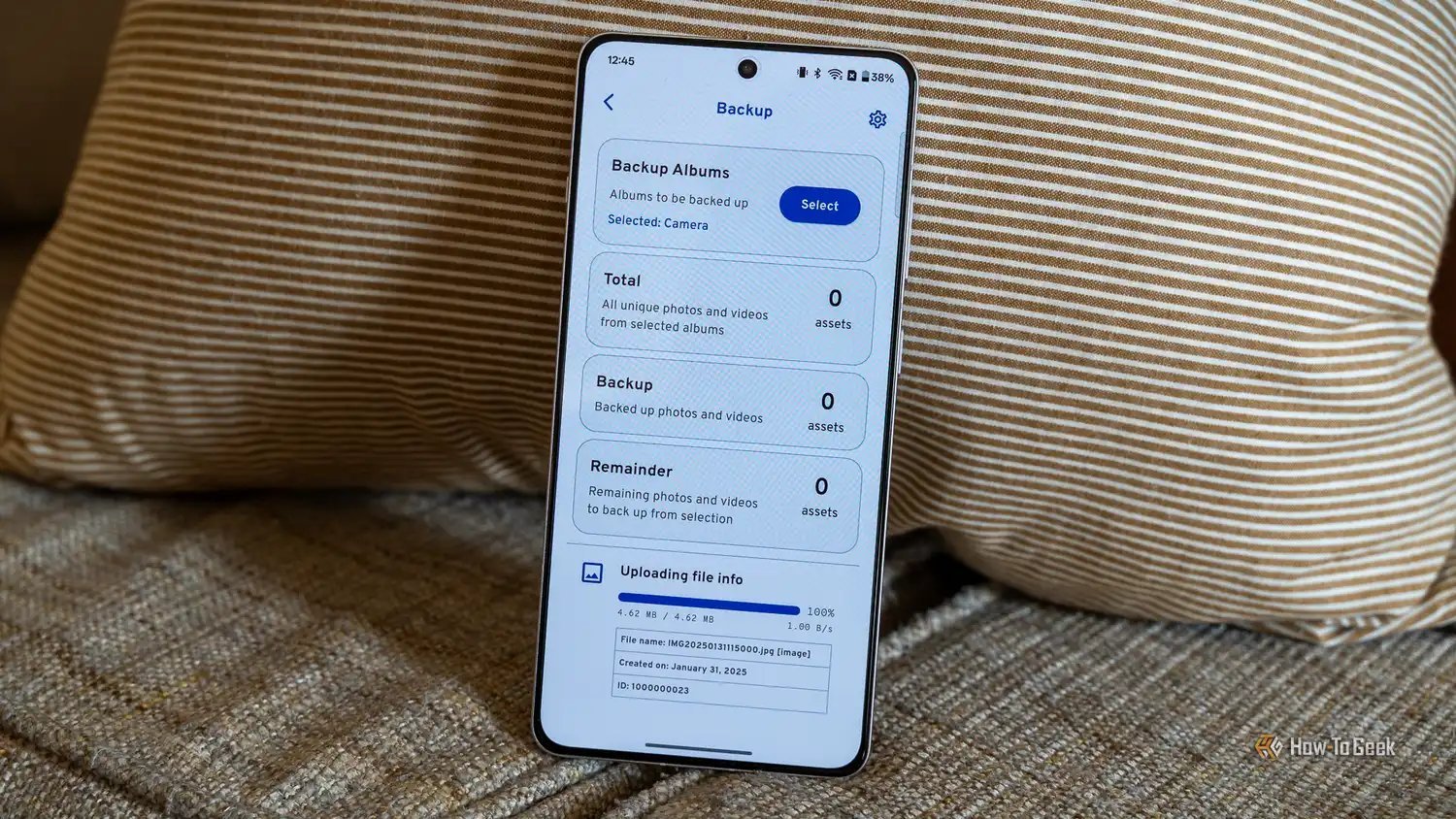
Install the Google Photos app, sign in with a Google account, and turn on backup. That’s genuinely it. The free 15GB is shared across Gmail, Drive and Photos, so if your Gmail is stuffed with a decade of attachments, check how much room you’ve actually got first (go to one.google.com/storage).
A few tips to make the free tier last:
- Back up in “Storage saver” quality rather than original. Google compresses photos slightly — on a phone screen or even a printed 6×4, you will not see the difference, and it roughly halves the storage used.
- Set backup to Wi-Fi only so it doesn’t eat your mobile data.
- Turn off backup for WhatsApp images, screenshots and memes. These clog up storage faster than anything. In the app, go to backup settings and untick the folders you don’t need.
15GB at storage-saver quality holds roughly 40,000–60,000 phone photos. For most people, that’s years.
Option 2: iCloud (Simplest for iPhone Users)
If you’re on iPhone, iCloud backup is already half-set-up. Go to Settings → [your name] → iCloud → Photos and switch on Sync this iPhone. The catch: Apple only gives you 5GB free, which a modern iPhone can fill in a month. iCloud is seamless and brilliant, but the free tier is stingy — most people end up paying 99p a month for 50GB, which is honestly reasonable.
But this article is about free, so: you can absolutely run iCloud’s free 5GB alongside Google Photos’ 15GB. Belt and braces costs nothing.
Option 3: Amazon Photos (The Hidden Gem)
If you have Amazon Prime, you get unlimited full-resolution photo storage included. Unlimited. Full quality, no compression. It’s the best deal in cloud storage that nobody talks about — you’re probably already paying for Prime for the delivery. Install the Amazon Photos app, enable auto-save, done. (Video storage is capped at 5GB, but photos are unlimited.)
Option 4: OneDrive and Others
Microsoft’s OneDrive gives 5GB free and integrates nicely if you’re a Windows user — the phone app can auto-upload your camera roll. Dropbox gives a measly 2GB free these days, so it’s not really a photo backup contender anymore unless you pay.
What I’d Actually Recommend
For a typical UK household, my setup would be: Google Photos as the main free backup (works on everyone’s phones, generous storage, great search), plus Amazon Photos if anyone has Prime as the full-quality second copy. Two independent backups, zero cost, ten minutes of setup. If a phone dies, the photos are safe in two places.
Whatever you choose, do it before you need it. Setting up a backup the day after you lose a phone is the most common — and most avoidable — tech regret there is. And if you’re clearing out an old handset, read our checklist of what to do before selling your old phone — step one is making sure your photos are safely backed up first. If the worst has already happened, our guide on recovering deleted photos from your phone might still save them.
One last thing: cloud backup protects against loss, theft and damage — but it’s still someone else’s computer. For truly irreplaceable photos (weddings, new babies, that sort of thing), an occasional copy on an external hard drive at a relative’s house is the gold standard. Paranoid? Maybe. But hard drives are cheap and regret is expensive.
Cloud Photo Backup Questions, Answered
Is Google Photos really free?
The 15GB tier is genuinely free, forever, no card required — shared across Photos, Gmail and Drive. It only costs money if you exceed 15GB (Google One plans start at £1.59/month for 100GB). Most people stay free for years by using Storage Saver quality and excluding WhatsApp junk from backup. Check your usage at one.google.com/storage before assuming you need to pay.
Are my photos private in cloud backup?
Your photos are private to your account, protected by your login and (hopefully) two-factor authentication. But “private” doesn’t mean “unscanned” — Google and Apple both analyse photos for features (face grouping, object search) and, in some cases, for illegal content detection. If that bothers you, look at end-to-end encrypted options like Ente or Apple’s Advanced Data Protection, which even the provider can’t read. Independent reviews at Which? compare the privacy terms of the major cloud storage services if you want to dig deeper.
What happens to my backed-up photos if I stop paying for storage?
On Google: you keep what’s there, but can’t add more until you’re back under the free limit — and after extended inactivity/over-quota periods, Google may eventually delete data (they warn you first, repeatedly). On iCloud: similar — backups pause. The lesson: don’t treat a paid tier as permanent unless you’ll keep paying. Keep a local copy of anything irreplaceable regardless.
Can I back up photos from a shared family phone?
Yes — each family member should use their own cloud account on shared devices, or use shared albums for communal photos. Google Photos and iCloud both support family sharing setups. Just be careful with automatic backup on a shared device: everyone’s photos can end up in one person’s cloud if you’re not paying attention to which account is signed in.
3 thoughts on “How to Back Up Your Photos to the Cloud for Free”