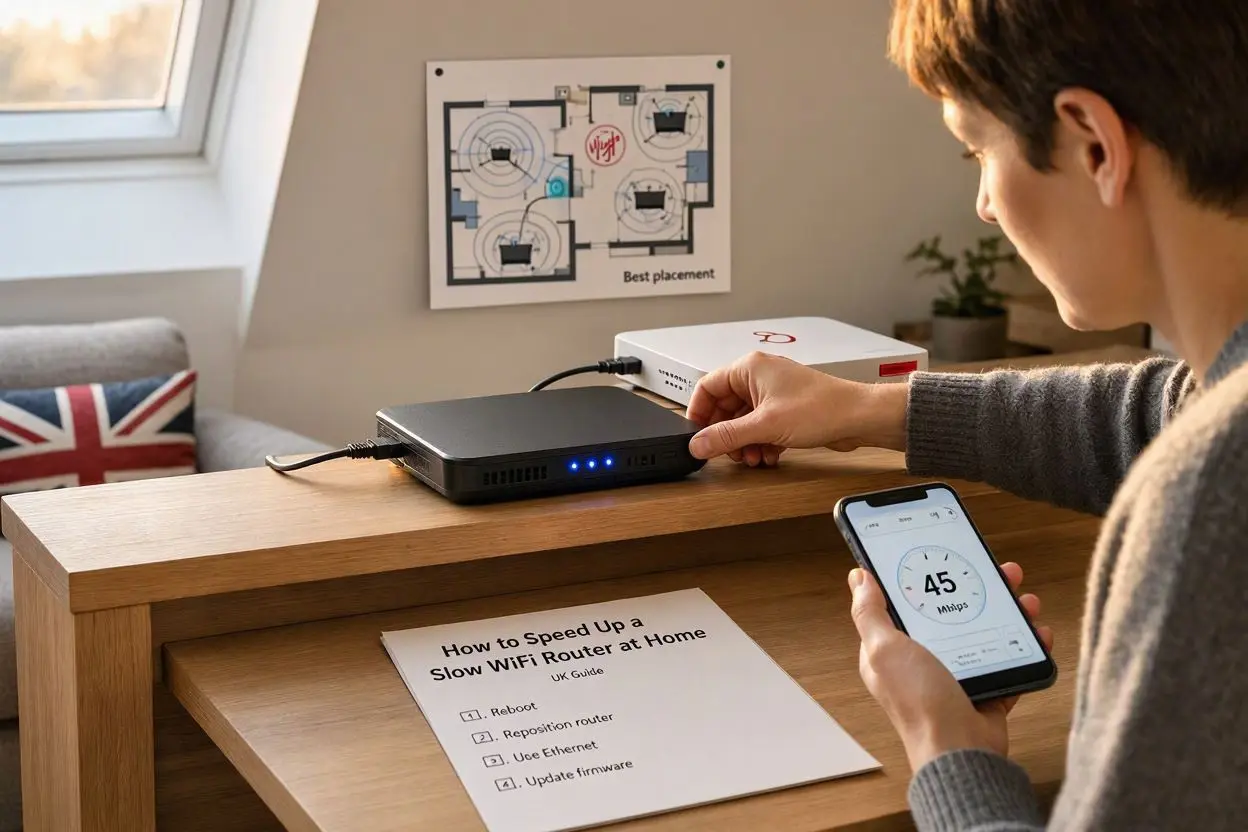
How to Speed Up a Slow WiFi Router at Home (UK Guide)
It’s 8pm. Someone is streaming a film, someone else is on a video call, and your phone is stuck on a loading wheel. Sound familiar?
Slow WiFi is one of those problems that makes a perfectly nice evening feel miserable. The good news is that most UK homes can get a noticeable boost without paying for a new broadband deal. Often it takes ten minutes and a bit of patience.
This guide walks you through the fixes in the order that makes sense, from the free and easy ones to the “maybe it’s time to spend some money” ones.
First, work out what is actually slow
Before you touch anything, check whether the problem is your WiFi or your broadband line itself. They are not the same thing.
- Plug a laptop into your router with an Ethernet cable.
- Run a speed test on a site like Speedtest.net or Which?’s speed checker.
- Now run the same test over WiFi, standing near the router.
- Compare both results with the speed you are paying for.
If the wired result is close to what your provider promised but WiFi is far lower, the problem is inside your home. That is the good scenario, because you can fix it yourself. If even the wired test is poor, skip to the section on contacting your provider.
One small tip: test at different times of day. A line that flies at 11am and crawls at 8pm usually points to evening congestion rather than a faulty router.
1. Restart your router properly
Yes, it’s the oldest advice in the book. It works because routers are small computers, and they slowly clog up over days or weeks of non-stop running.
Switch it off at the wall, wait 30 seconds, then switch it back on. Give it a couple of minutes to reconnect before you test again. Pressing the tiny reset button is different, since that wipes your settings, so leave it alone unless you really mean to start fresh.
Some people schedule a weekly restart in the router settings. If yours has that option, it’s worth a try.
2. Move the router to a better spot
Where your router sits matters more than most people think. Many UK homes have the router stuck wherever the phone socket happens to be, which is often a hallway floor, a cupboard, or behind the TV.
Try to:
- Put it near the middle of the house rather than in a corner.
- Raise it up on a shelf instead of leaving it on the floor.
- Keep it out in the open, not inside a cabinet or behind furniture.
- Move it away from thick walls, especially older brick or stone ones, which are common in UK houses.
- Keep it clear of microwaves, cordless phones, baby monitors and fish tanks. Water and metal both interfere with signal.
If the socket position makes this impossible, a longer phone extension cable or an Ethernet run to a better spot can help. That leads nicely to the next idea.
3. Switch to the 5GHz band
Most modern routers broadcast two WiFi bands, 2.4GHz and 5GHz. Think of them like a motorway and a country lane.
- 2.4GHz reaches further and passes through walls better, but it is slower and very crowded, because neighbours’ routers, Bluetooth gadgets and kitchen appliances all use it.
- 5GHz is faster and less crowded, but the signal fades quicker with distance and walls.
If you’re in the same room or one room away from the router, connect to 5GHz for streaming, gaming and calls. Keep 2.4GHz for far-away devices like smart plugs or a garden camera.
Many routers merge both bands under one name. If yours does, try giving each band its own name, such as “HomeWiFi” and “HomeWiFi-5G”, so you can choose which one each device uses.
4. Change your WiFi channel
In a terraced street or a block of flats, your router and about a dozen others are all shouting on the same few channels. It is a bit like everyone talking at once in a pub.
Log in to your router settings. The address is usually printed on a sticker on the router, and often looks like 192.168.0.1 or 192.168.1.1. Find the wireless settings and look at the channel option.
For 2.4GHz, channels 1, 6 and 11 don’t overlap with each other, so pick whichever one is least busy. A free WiFi analyser app on your phone can show you which channels your neighbours are using. On 5GHz there is more room, so interference is less of an issue.
5. Update your router’s firmware
Firmware is the software that runs your router. Updates fix bugs, close security holes and sometimes improve performance.
If you use a router supplied by BT, Sky, Virgin Media, TalkTalk or similar, it usually updates itself in the background, which is another reason a restart helps. If you own a third-party router, check the manufacturer’s support page or the admin screen for an update button.
6. Cut down what is eating your bandwidth
Your connection is shared between every device in the house. Phones, tablets, smart TVs, games consoles, doorbells, speakers, even the fridge in some homes.
A few things to check:
- A console or PC downloading a huge game update can hog most of the line.
- Cloud backups on phones and laptops often run quietly in the background.
- 4K streaming on several TVs at once uses a lot of data.
Pause big downloads while someone is on a video call. Some routers also have a setting called QoS (Quality of Service) that lets you prioritise certain devices, like a work laptop. It is worth a look if your router supports it.
7. Check nobody else is on your WiFi
Unknown devices on your network can slow things down, and they are a security risk too. Open your router’s connected devices list and see if anything looks unfamiliar.
If you spot something odd, change your WiFi password to a strong one, ideally a long passphrase, and make sure you’re using WPA2 or WPA3 security. Also change the router’s admin password if it is still the default one on the sticker.
8. Use Ethernet for the devices that matter
WiFi is convenient, but a cable is almost always faster and more stable. If your TV, games console or desk PC sits fairly close to the router, plug it in with an Ethernet cable.
This also frees up wireless capacity for your phones and tablets, so everything feels a bit snappier.
9. Check your cables and filters (especially on older lines)
This one is very UK. If you’re on an older ADSL or part-fibre connection, a faulty or missing microfilter on a phone socket can cause dropouts and slow speeds. Make sure every phone socket in use has a proper filter, and try plugging the router into the master socket if you can.
It’s also worth looking at the cables themselves. A frayed or kinked phone lead, or an ancient Ethernet cable, can quietly hold you back. Replacements are cheap.
10. Add a mesh system or powerline adapters for big or awkward homes
Sometimes one router simply can’t cover everything, particularly in a three-storey house, a long Victorian terrace or a home with thick walls.
You have two main options:
- Mesh WiFi: a main unit plus one or two satellites that spread a single network around the house. This is the neatest fix for larger homes and works with most providers.
- Powerline adapters: these send the internet through your home’s electrical wiring and give you a socket to plug in or a new WiFi point upstairs. They can be handy, though results depend on your wiring.
Avoid cheap plug-in “WiFi extenders” if you can. They often halve your speed because they have to receive and re-transmit the signal on the same channel.
11. Think about replacing an old router
If your router is five or six years old, or you’ve been using the basic one your provider sent years ago, it may simply be out of date. Newer routers support faster standards like WiFi 6 and handle lots of devices at once much better.
A decent upgrade doesn’t have to be extreme. If you live in a flat or small house with a few devices, a mid-range router is plenty. Save the expensive models for big homes with lots of people online at the same time. Check that any router you buy is compatible with your type of connection (FTTC, full fibre, cable) before ordering.
12. Contact your provider if the line itself is slow
If your wired test is poor, the issue may be your line, not your WiFi. Contact your provider with your test results, the time and date, and the speed you were promised at sign-up.
In the UK, Ofcom’s rules require many broadband providers to give you a minimum guaranteed speed at sign-up. If your speed regularly falls below it and they can’t fix it within the time allowed, you may be entitled to leave your contract without an early exit penalty. Check your provider’s terms and Ofcom’s website for the exact current rules, as details can vary by provider and contract.
Also compare what you pay for with what is now available in your area. Full fibre has rolled out widely, and you may be able to get a much faster line for a similar price.
Quick checklist
- Run a wired speed test, then a WiFi test
- Restart the router
- Move it to a central, raised, open spot
- Use 5GHz for nearby devices
- Change a crowded channel
- Update firmware
- Pause heavy downloads, check for unknown devices
- Plug fixed devices in with Ethernet
- Check filters and cables
- Consider mesh or a newer router
- Contact your provider if the wired speed is poor
Frequently asked questions
Why is my WiFi so slow when my broadband speed is fast?
Usually it comes down to distance, walls, interference or too many devices. A wired test that is fast while WiFi is slow confirms the problem is in your wireless setup, not the line.
Does moving my router really make a difference?
Yes. Placement is one of the easiest and most effective fixes. A central, raised position with fewer obstacles can noticeably improve both speed and coverage.
Is 5GHz always better than 2.4GHz?
It is faster, but it doesn’t travel as far. Use 5GHz close to the router and 2.4GHz for distant rooms.
Do WiFi extenders work?
They can help in a pinch, but cheap ones often cut speeds. A mesh system or a wired access point usually gives better results.
How often should I restart my router?
Whenever it feels sluggish, or on a regular schedule like once a week if your router allows it.
When should I replace my router?
If it is several years old, struggles with many devices, or doesn’t support newer WiFi standards, an upgrade is worth considering.
Final thoughts
Most slow WiFi problems aren’t caused by anything dramatic. A router tucked behind the sofa, a crowded channel, or one device downloading in the background is often all it takes. Start with the free fixes at the top of this list, test after each change, and only spend money once you know where the bottleneck really is.
Give two or three of these a go this evening, and you may be surprised how much quicker your connection feels.